Tables
Tables are the core building block of your seating plan. Each table belongs to one event and holds a set number of seats. You can add as many tables as your plan allows, customize seat counts, and give tables friendly nicknames.
Adding a table
Click Add Table in the sidebar. A new table is appended to the current event. New tables start with 8 seats by default.
- Click Add Table in the sidebar.
- The table appears on the main canvas labeled Table N where N is the next sequential number.
- Optionally, click the pencil icon to add a nickname right away.
- Use the + and − buttons to set the correct seat count.
Table numbers
Tables are automatically labeled Table 1, Table 2, etc. in the order they are created. These numbers are fixed and reflect the creation order — they cannot be manually reordered. The number is used in exports and appears on the shared view.
If the table number matters (e.g., for a venue that uses physical table number cards), create tables in the order they will be numbered at the venue.
Table nicknames
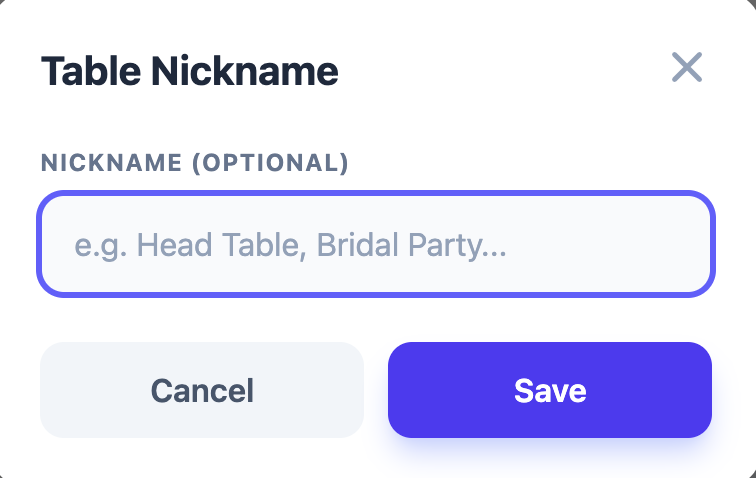
Nicknames are optional labels that make tables easier to identify. Common examples: Head Table, Bridal Party, Kids Table, VIP. The nickname is displayed below the table number and appears on the public share page and in exports.
To add or change a nickname:
- Click the pencil icon on the table card.
- Type the nickname in the field that appears.
- Press Enter or click away to save.
Adjusting seat count
Each table can have between 1 and 12 seats. Use the + button to add a seat and the − button to remove one.
- Adding a seat appends an empty seat to the table.
- Removing the last occupied seat from a table moves that guest back to the unseated list automatically. The guest is not deleted.
- You cannot reduce a table below 1 seat.
Infant / accessibility seats
Individual seats can be marked as infant seats (or accessibility seats). This is a flag on the seat itself, separate from the guest assignment. Click a seat to open the seat detail panel, where you can toggle the infant seat flag. Infant seats are visually distinguished on the table card and appear in the export.
Deleting a table
Click the trash icon on a table to delete it. Before the table is deleted, all guests seated at that table are automatically moved back to the unseated list — no guest data is lost. The table number is retired; if you add a new table after deleting one, the numbering continues from where it left off (it does not reuse deleted numbers).
Note: Deletion is immediate and cannot be undone. Double-check that you are deleting the right table.
Table limits by plan
The number of tables you can add per event depends on your plan:
- Guest (not signed in): up to 3 tables per event
- Free (signed in): up to 7 tables per event
- Per-event purchase ($20): unlimited tables for the purchased event
- Premium ($30/month or $199/year): unlimited tables for all events
When you reach the limit, the Add Table button is disabled and a prompt appears to upgrade. See Premium & Billing for upgrade options.
Common questions
Can I reorder tables?
Tables always appear in the order they were created, numbered sequentially. Reordering is not currently supported. If order matters, plan ahead and create tables in the sequence you want them displayed.
What happens to guests when I delete a table?
All guests at the deleted table are moved to the unseated list. They are not deleted from the event — you can reassign them to other tables.
Can I have different seat counts at different tables?
Yes. Each table has its own independent seat count. You might have a head table with 12 seats and round tables with 8, all in the same event.