Settings
Settings is your account management hub. From here you can update your profile, view events you have purchased sharing for, upgrade to Premium, manage an existing subscription, and sign out. Settings is only available when you are signed in.
How to access Settings
- Make sure you are signed in (Settings is not visible in guest mode).
- Click your name or avatar in the top-right corner of the app to open the user menu.
- Click Settings. The settings page opens.
Profile
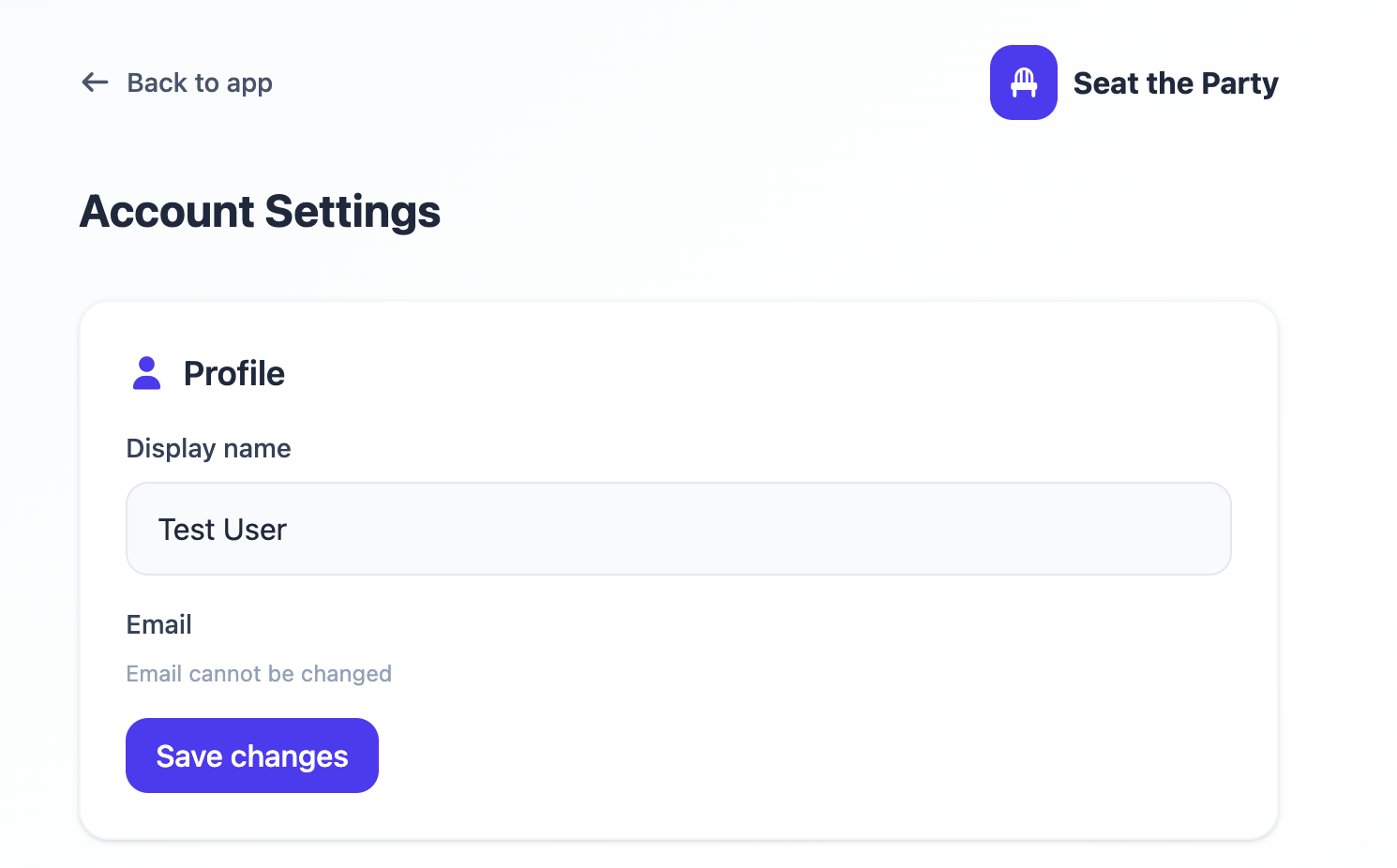
The Profile section shows your account details and lets you update your display name.
- Display name — The name shown in the user menu. Click the field to edit it and save. This name is for your own reference and is not shown to guests who visit a shared seating chart.
- Email address — Read-only. The email you used to create your account. Email changes are not currently supported self-service — contact support if you need to update it.
Purchased events
When you purchase sharing for a specific event ($20 one-time), that purchase is recorded in Settings under Purchased Events. This section shows:
- A list of all events you have individually purchased sharing for.
- Each entry links to the event's details page so you can quickly navigate to it.
If you subscribe to Premium, all your events automatically have sharing enabled and you do not need per-event purchases going forward. Any previously purchased events remain accessible.
Subscription
The Subscription section shows your current plan and lets you upgrade or manage your billing.
Upgrading to Premium
If you are on the free plan, you will see an Upgrade to Premium button. Clicking it opens the Stripe checkout flow. Premium is $30/month or $199/year when billed annually, and includes unlimited sharing for all events and unlimited tables per event. See Premium & Billing for full details.
Managing an existing subscription
If you are already a Premium subscriber, the Subscription section shows a Manage subscription button. This opens the Stripe customer billing portal, where you can:
- Update your payment method (credit card)
- View billing history and download receipts
- Cancel your subscription
Cancellation takes effect at the end of the current billing period. Your Premium features remain active until then.
Sign out
To sign out of your account, scroll to the bottom of the Settings page and click Sign out. You can also sign out from the user menu in the header. After signing out, the app returns to guest mode. Your cloud data is preserved — you can sign back in at any time to access it.
Common questions
I purchased an event but sharing is not working. What do I do?
Check Settings → Purchased Events to confirm the purchase is listed. If it is, navigate to the event and try clicking Share again. If the event is not listed, the purchase may not have completed — check your email for a Stripe receipt. Contact support if the issue persists.
Where do I find my receipts?
Stripe sends receipts automatically to the email on your account after each charge. For subscription billing history, click Manage subscription in Settings to open the Stripe portal, which shows all past invoices.
Can I change my password?
Password changes are handled via the "Forgot password?" flow on the sign-in screen. Sign out, click Sign In, then click "Forgot password?" and follow the email link to reset it.