Guests
Guests are the people you want to seat at your event. You add them to an unseated pool first, then drag or click them into seats at your tables. Guests belong to a specific event and are independent across events.
Adding guests one at a time
The quickest way to add a single guest is the Add Guest input field in the sidebar:
- Click the Add Guest field in the sidebar.
- Type the guest's name (e.g., "Jane Smith").
- Press Enter. The guest appears immediately in the Unseated Guests panel.
- The field clears automatically so you can type the next name right away.
Importing guests in bulk
If you already have a guest list in a spreadsheet, document, or email, use the Import button to add them all at once. This is the fastest way to add large guest lists.
- Click Import in the sidebar.
- In the text area that appears, paste your guest list — one name per line.
- Click Import (or the confirm button). All names are added as unseated guests instantly.
The import format is flexible. You can paste directly from a spreadsheet column, a plain text document, or type names separated by line breaks:
Alice Johnson
Bob Smith
Charlie Brown
Diana Prince
Eleanor RigbyThe unseated guests panel
Every guest starts in the Unseated Guests panel on the left side of the app. This panel is your "holding area" — it shows everyone who has not yet been assigned to a table seat.
- The panel shows a count of unseated guests so you can track progress.
- You can toggle alphabetical sorting to make it easier to find specific guests in a large list.
- Drag a guest from the unseated panel onto any empty seat to assign them. Or click the guest to select, then click a seat.
- Drag a seated guest back to the unseated panel (or click the seat and choose to clear it) to unseat them.
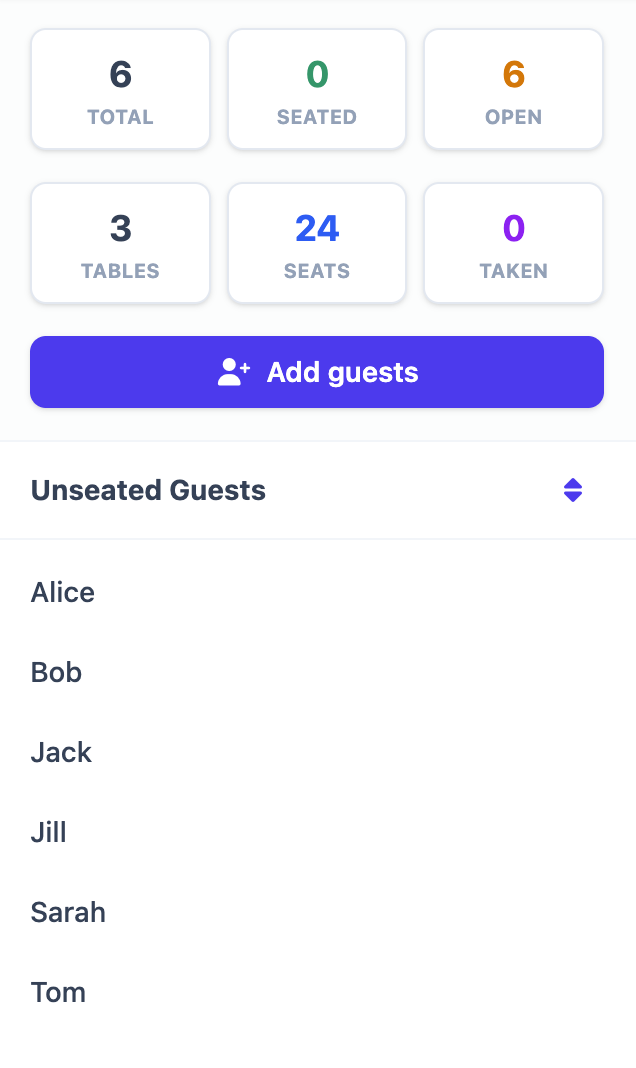
Renaming a guest
You can rename a guest at any time, whether they are seated or unseated:
- Click the guest's name in the unseated panel, or click the seat where they are sitting.
- An edit modal or panel opens showing the guest's name.
- Edit the name and save.
Renaming a guest does not change their seat assignment — it just updates the display name everywhere it appears (unseated panel, seat, export, and share view).
Removing a guest
To remove a guest from an event entirely:
- If the guest is seated, unseat them first by dragging them to the unseated panel or clearing their seat.
- In the unseated panel, click the trash icon next to the guest's name.
- The guest is permanently removed from the event.
Note: Removing a guest cannot be undone. If you need to re-add them, you can type their name in the Add Guest field again.
Common questions
Is there a limit on the number of guests?
There is no hard cap on the number of guests you can add. The practical limit is the total number of seats across all your tables. You can have unseated guests — they just stay in the unseated panel until assigned.
Can the same guest appear in multiple events?
Guests are scoped to a single event. If you need the same person at two separate events, add them to each event independently. Use bulk import to quickly populate a second event with the same names.
How do I track plus-ones or couples?
Add each person as a separate guest. A common convention is to use names like "John Smith" and "Jane Smith (Partner)" or "Smith +1" so you can keep them together when assigning seats. The app does not have a built-in grouping feature, but seated guests are displayed adjacent to one another on the same table.
Can I see which guests are not yet seated?
Yes. The unseated panel shows all guests without a seat. The count at the top of the panel tells you exactly how many guests still need to be placed.