Export
Export your seating plan as a PDF file or copy it as plain text to paste into an email, spreadsheet, or document. It's the quickest way to create an offline record of your seating assignments. Export requires a per-event purchase or Premium subscription.
Premium or per-event purchase required. Export (PDF and text) is available on the $20 per-event purchase and Premium subscription. It is not available on the free plan.
How to export
- Make sure you have a per-event purchase or Premium subscription. Export is not available on the free plan.
- Open the event you want to export.
- Click the Export button in the header or sidebar.
- Click PDF to download a formatted PDF file, or Copy to copy the plain text to your clipboard.
Download as PDF
Click the red PDF button in the export panel to download a letter-format PDF of your seating plan. The PDF is generated in your browser — no server upload required — and saves as [event-name]-seating.pdf.
The PDF lays out tables in a two-column format with each guest listed by seat number. It's ready to print and hand to a venue coordinator or keep as a physical backup on the day of your event.
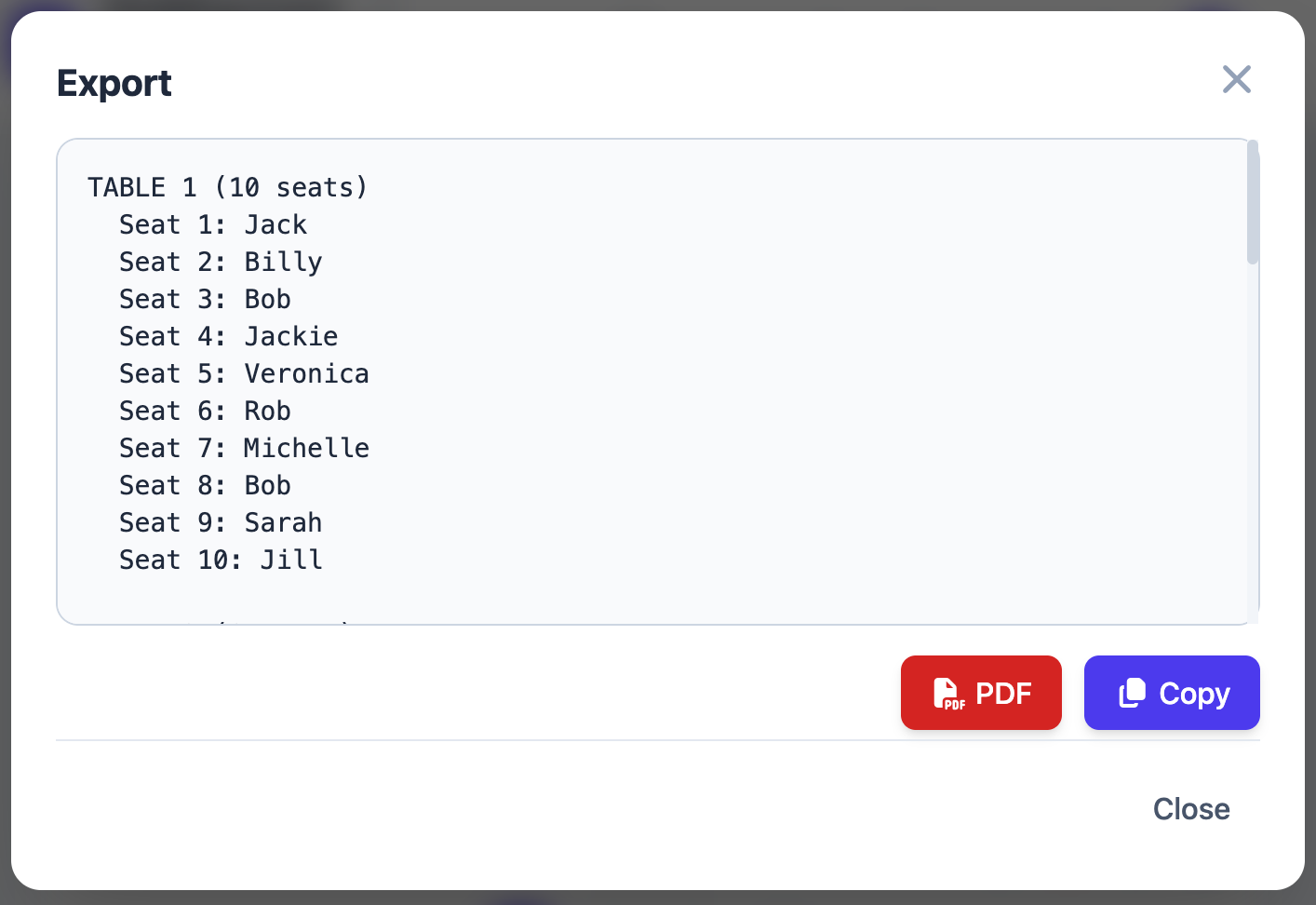
Export format: Full Data
Full Data is the complete export. It lists every table, every seat (occupied or empty), and all unseated guests. This is useful for a comprehensive record or for review before the event.
Example output:
TABLE 1 (8 seats)
  Seat 1: Alice Johnson
  Seat 2: Bob Smith
  Seat 3: (Empty)
  Seat 4: Diana Prince
  Seat 5: (Empty)
  Seat 6: Eleanor Rigby
  Seat 7: Frank Miller
  Seat 8: Grace Kelly

TABLE 2 — Head Table (6 seats)
  Seat 1: George Washington
  Seat 2: Martha Washington
  ...

UNSEATED GUESTS
  Charlie Brown
  Henry Ford
Nicknames appear next to the table number (e.g., "TABLE 2 — Head Table"). If a table has no nickname, just the number and seat count are shown. Empty seats are labeled "(Empty)" so you have a complete picture of each table's capacity vs. occupancy.
The export modal shows a preview of the text and a Copy button. Clicking Copy places the entire export text on your clipboard. A brief toast notification confirms the copy was successful.
Once copied, paste it anywhere:
- Google Docs or Word — Paste and reformat for a printable document.
- Spreadsheet — Paste into a sheet and clean up for a structured record.
- Email — Paste directly into an email body to share with your team.
- Venue document — Include in a briefing pack for the event coordinator.
Export vs. sharing
Export and Sharing serve different purposes:
| Export | Share link | |
|---|---|---|
| Format | Plain text (copy/paste) | Public web page |
| Updates automatically | No — a snapshot at time of export | Yes — always current |
| Requires purchase/Premium | Yes (per-event or Premium) | Yes ($20/event or Premium) |
| PDF download | Yes | No |
| Best for | Printed backups, offline records, email | Guest self-lookup, venue displays |
Common questions
Can I export to CSV or Excel?
Export produces plain text only. For a spreadsheet, paste the full-data export into a Google Sheet or Excel cell and use text-to-columns or manual formatting to structure it. The format is consistent and predictable, making manual parsing straightforward.
Does export include unseated guests?
Yes — a section at the bottom lists any guests who have not yet been assigned to a seat.
Why is the Export button not visible?
Export requires a per-event purchase or Premium subscription. If you are on the free plan, Upgrade in Settings → Subscription, or purchase the specific event you want to export.