How to generate a share link
- Make sure you are signed in.
- Open the event you want to share (it must be the current event).
- Click the Share button in the header.
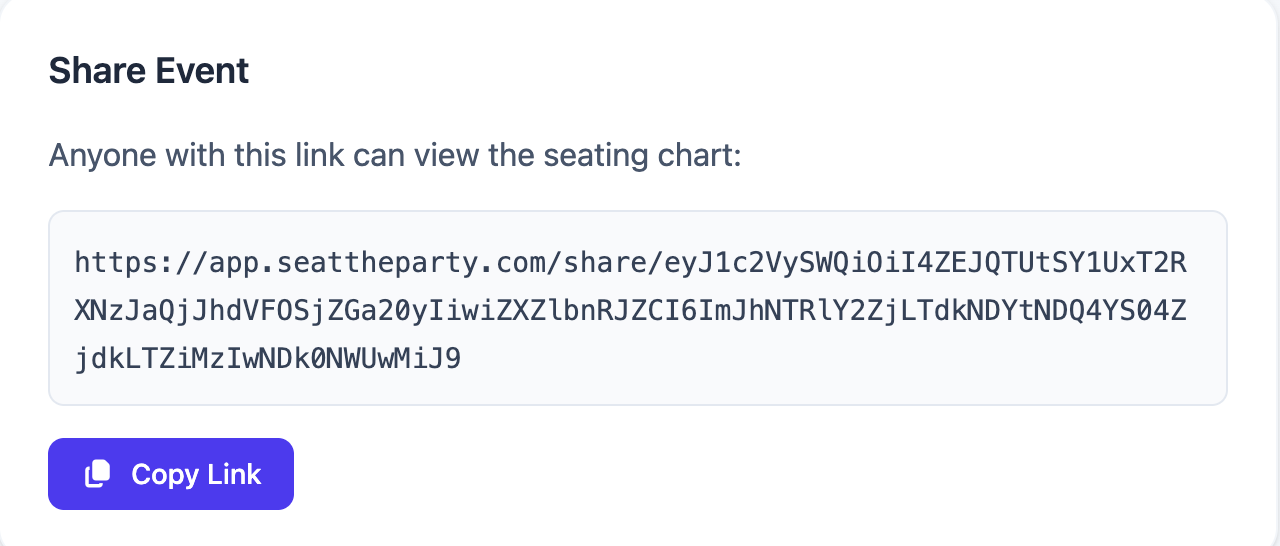
- If you already have sharing enabled for this event (via a purchase or Premium), the shareable URL is displayed. Copy it and send it to your guests.
- If you have not yet purchased sharing for this event, you will be prompted to purchase ($20 one-time) or to upgrade to Premium.
What the share page shows
The shared link opens a read-only view of your seating chart. The page is designed to be easy for guests to browse on their phone at the venue entrance.
The share page displays:
- Event name — The name you gave the event.
- Event date and venue — If set in event details.
- All tables — Shown as round table cards, each with its table number and optional nickname.
- Seated guests — Each occupied seat shows the guest's name.
The share page does not show:
- Unseated guests (guests without a seat are not visible to share link visitors).
- Empty seats (seats with no guest assigned are shown but unlabeled).
- Any editing controls — the view is completely read-only.
Event Day Seat Finder & Entrance QR Code Sign
Every shared event automatically includes a dedicated mobile-friendly Event Day Seat Finder and printable QR code sign at /share/{id}/search. Instead of scanning through a large table diagram, guests arriving at your venue can simply type their name into a search bar to instantly see their assigned table.
For a complete step-by-step guide on creating, downloading, and printing your entrance QR sign, see our dedicated guide: QR Code Seating Chart Help Guide.
Auto-sync: changes appear live
The share page always reflects the current state of your seating plan. When you make changes in the editor — move a guest, rename a table, add a new table — those changes appear on the share page automatically. There is no "publish" or "re-sync" step.
This is especially useful close to the event: if you receive a last-minute RSVP change, update the plan in the editor and the shared link instantly reflects the new assignment. Anyone who refreshes the share page will see the latest version.
Requirements for sharing
- You must be signed in to a Seat the Party account.
- Sharing must be enabled for the specific event, either by purchasing it ($20 one-time) or through an active Premium subscription.
Signing in alone is not sufficient — you also need to have purchased or subscribed. You cannot share as a guest (not signed in).
Per-event purchase vs. Premium
| Option | Cost | What it unlocks |
|---|---|---|
| Per-event purchase | $20 one-time | Sharing + unlimited tables for that one event |
| Premium subscription | $30/month or $199/year | Sharing + unlimited tables for all events, no per-event fees |
See Premium & Billing for the full comparison and how to purchase or subscribe.
Revoking a share link
You can revoke an active share link at any time from the Event Details page by clicking Revoke Link. Please note that revoking a link immediately and permanently invalidates both the shared web link and any printed entrance QR codes. If you decide to share your event again later, a brand-new link and QR code sign will be generated and will need to be re-printed.
Common questions
Do guests need an account to view the shared link?
No. The share page is fully public. Anyone with the URL can view it with no login required.
Can guests edit the seating through the shared link?
No. The share page is completely read-only. Only you (signed in to your account) can make changes to the seating plan.
If I add more guests after generating the link, do they appear on the share page?
Yes, automatically. As soon as you save changes in the editor (which happens immediately), the share page reflects them. Refresh the share page to see the latest version.
Is the share link indexed by search engines?
The share page is publicly accessible but the URLs are generated as opaque tokens, making them difficult to discover without the link. They are not submitted to search engine indexes by Seat the Party.