Premium or per-event purchase required. Export (PDF and text) is available on the $20 per-event purchase and Premium subscription. It is not available on the free plan.
How to export
- Make sure you have a per-event purchase or Premium subscription. Export is not available on the free plan.
- Open the event you want to export.
- Click the Export button in the header or sidebar.
- Click PDF to download a formatted PDF file, or Copy to copy the plain text to your clipboard.
Download as PDF
Click the red PDF button in the export panel to download a letter-format PDF of your seating plan. The PDF is generated in your browser — no server upload required — and saves as [event-name]-seating.pdf.
The PDF lays out tables in a two-column format with each guest listed by seat number. It's ready to print and hand to a venue coordinator or keep as a physical backup on the day of your event.
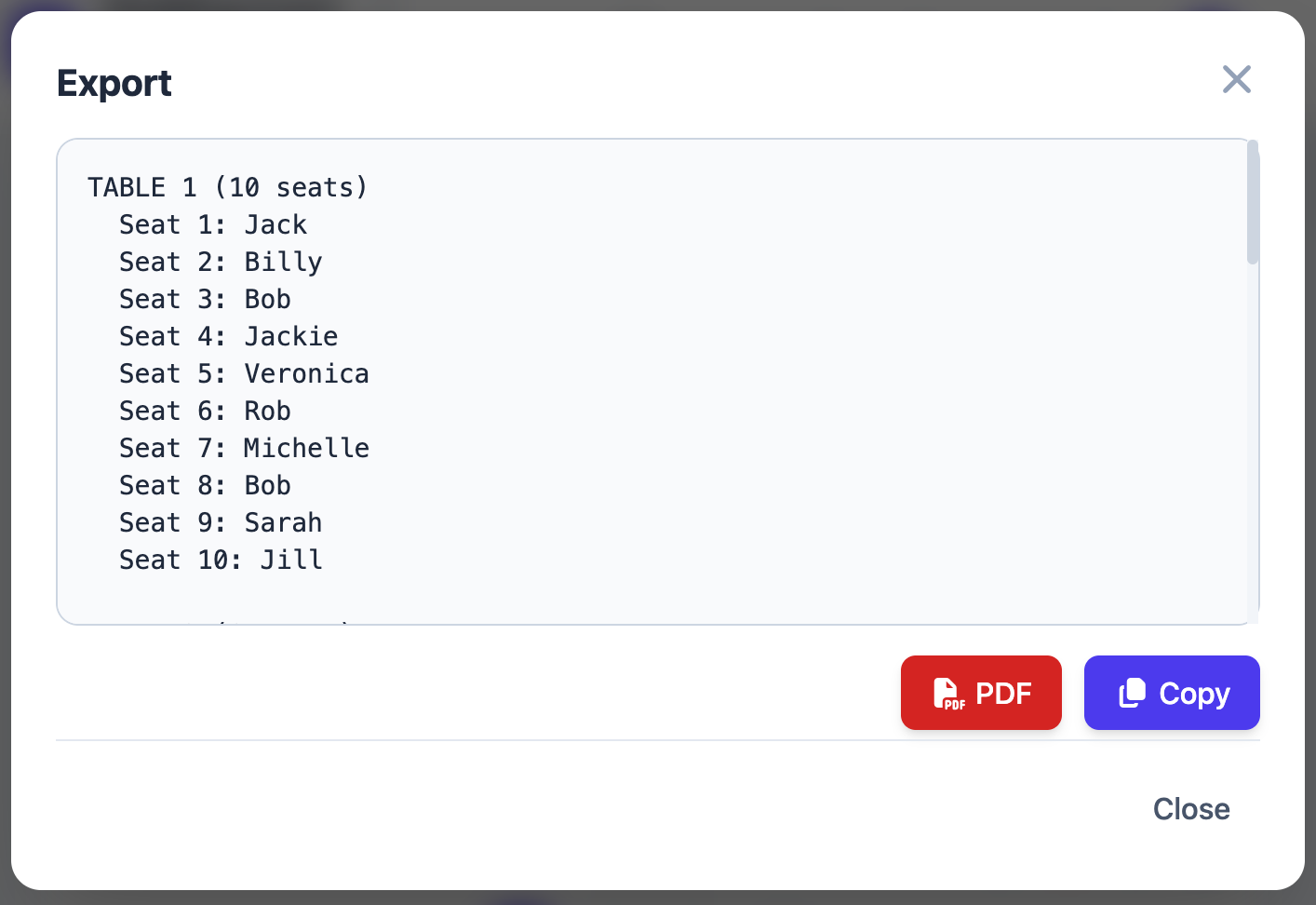
Export format: Full Data
Full Data is the complete export. It lists every table, every seat (occupied or empty), and all unseated guests. This is useful for a comprehensive record or for review before the event.
Example output:
TABLE 1 (8 seats)
  Seat 1: Alice Johnson
  Seat 2: Bob Smith
  Seat 3: (Empty)
  Seat 4: Diana Prince
  Seat 5: (Empty)
  Seat 6: Eleanor Rigby
  Seat 7: Frank Miller
  Seat 8: Grace Kelly
TABLE 2 — Head Table (6 seats)
Seat 1: George Washington
Seat 2: Martha Washington
…
UNSEATED GUESTS
Charlie Brown
Henry Ford
Nicknames appear next to the table number (e.g., "TABLE 2 — Head Table"). If a table has no nickname, just the number and seat count are shown. Empty seats are labeled "(Empty)" so you have a complete picture of each table's capacity vs. occupancy.
The export modal shows a preview of the text and a Copy button. Clicking Copy places the entire export text on your clipboard. A brief toast notification confirms the copy was successful.
Once copied, paste it anywhere:
- Google Docs or Word — Paste and reformat for a printable document.
- Spreadsheet — Paste into a sheet and clean up for a structured record.
- Email — Paste directly into an email body to share with your team.
- Venue document — Include in a briefing pack for the event coordinator.
Export vs. sharing
Export and Sharing serve different purposes:
| Export | Share link | |
|---|---|---|
| Format | Plain text (copy/paste) | Public web page |
| Updates automatically | No — a snapshot at time of export | Yes — always current |
| Requires purchase/Premium | Yes (per-event or Premium) | Yes ($20/event or Premium) |
| PDF download | Yes | No |
| Best for | Printed backups, offline records, email | Guest self-lookup, venue displays |
Common questions
Can I export to CSV or Excel?
Export produces plain text only. For a spreadsheet, paste the full-data export into a Google Sheet or Excel cell and use text-to-columns or manual formatting to structure it. The format is consistent and predictable, making manual parsing straightforward.
Does export include unseated guests?
Yes — a section at the bottom lists any guests who have not yet been assigned to a seat.
Why is the Export button not visible?
Export requires a per-event purchase or Premium subscription. If you are on the free plan, Upgrade in Settings → Subscription, or purchase the specific event you want to export.